Making Tax Digital for Income Tax – Step by step
This is a step-by-step guide to using Income Tax MTD through SmartPropertyManager.com
Pre-requisites
- Individuals must use the standard financial year: 6/Apr -> 5/Apr.
- Individuals must have signed up for Making Tax Digital for Income Tax. This can be done by going to the following link:
Initial setup steps
Set up financial periods
Make sure the financial periods configured in SmartPropertyManager match the expected dates for HMRC.
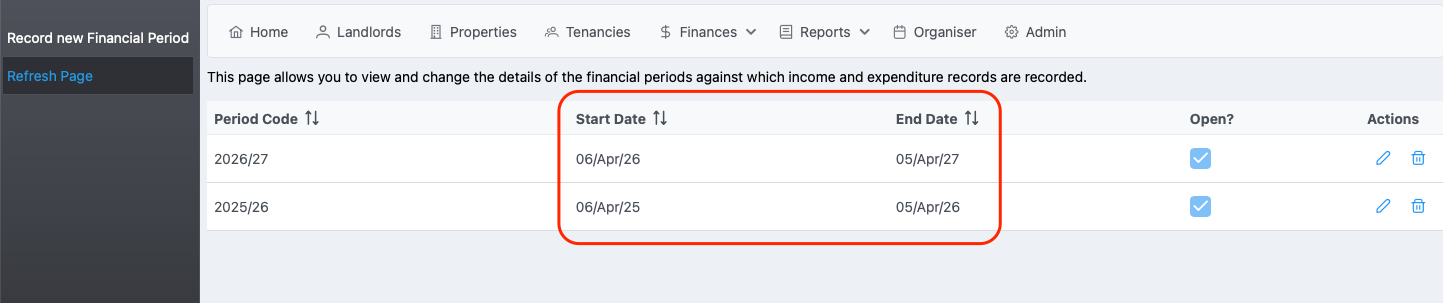
SmartPropertyManager currently only supports Income tax MTD for individuals that use standard tax years starting on 6/Apr and ending on 5/Apr of the following year. The financial periods in SmartPropertyManager must match this. Check this as follows:
- Go to the Admin page.
- Go to the Financial Periods page.
-
Make sure the financial periods from 2026 onwards start on 6/Apr and end on 5/Apr. If not, please edit the financial periods and correct the start and end dates.
Set up joint owners
If you have an account where all the properties are 100% owned by yourself, then you can skip this section. Otherwise:
SmartPropertyManager.com allows joint owners to submit proportioned figures from a single shared account. It can calculate each owner’s share of income and expenditure for jointly owned properties, based on the ownership rules defined against portfolios and property units and allow each owner to submit updates to HMRC with correctly proportioned figures. To support this, you need to set up the following:
- A Landlord record for each person who has a share of the properties
- Ownership rules against the properties to describe the share owned by each landlord over time
- A User record for each person who needs to connect to HMRC and submit figures through the Income Tax MTD gateway
(1) Set up Landlord records
- Go to the Landlords page
- Make sure you have a Landlord record defined for each person who has an ownership share of your properties.
(2) Set up ownership rules
- Go to the Properties page.
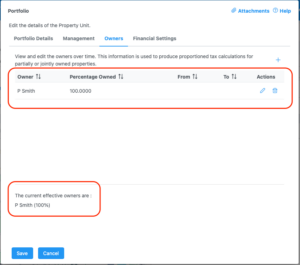
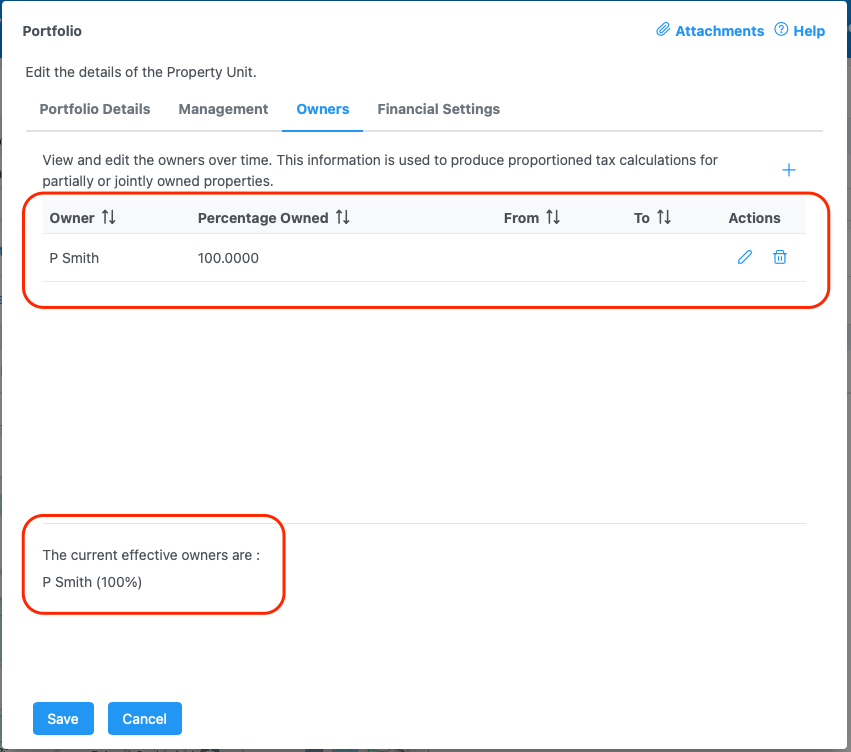
- For portfolios, edit each portfolio and go to the Owners tab. Make sure the ownership rules are correct.
- For property units, edit each property unit, go to the Additional Details tab and then to the Owners tab. Make sure the ownership rules are correct.
- Useful notes:
- Ownership rules defined on a parent portfolio or property unit are automatically applied to any descendant property units that do not have any explicit rules assigned to them. For this reason, the recommendation is to define ownership rules on portfolios or parent property units wherever possible.
- When ownership rules are not explicitly defined for a property unit or for any parent property unit or portfolio, then ownership is defaulted to your main business organization/landlord which would have been automatically created when your account was first registered.
- Below the table, a summary is displayed of the effective owners as of today. If no ownership rules are explicitly defined for the property unit being edited, then it will inherit and display the ownership as defined from the parent property unit or portfolio.
(3) Set up user records
Each individual who needs to submit to HMRC must have their own SmartPropertyManager user login. To do this:
- Go to the Admin page
- Go to the Users page
- Ensure there is a separate User record set up for each person that needs to connect to HMRC and submit figures.
Connect to HMRC
Each individual that needs to submit figures to HMRC then needs to:
- Log in using their own SmartPropertyManager user account
- Go to the UK Property Tax page by clicking on Finances and then UK Property Tax in the main menu.
- Configure the user’s settings for MTD.
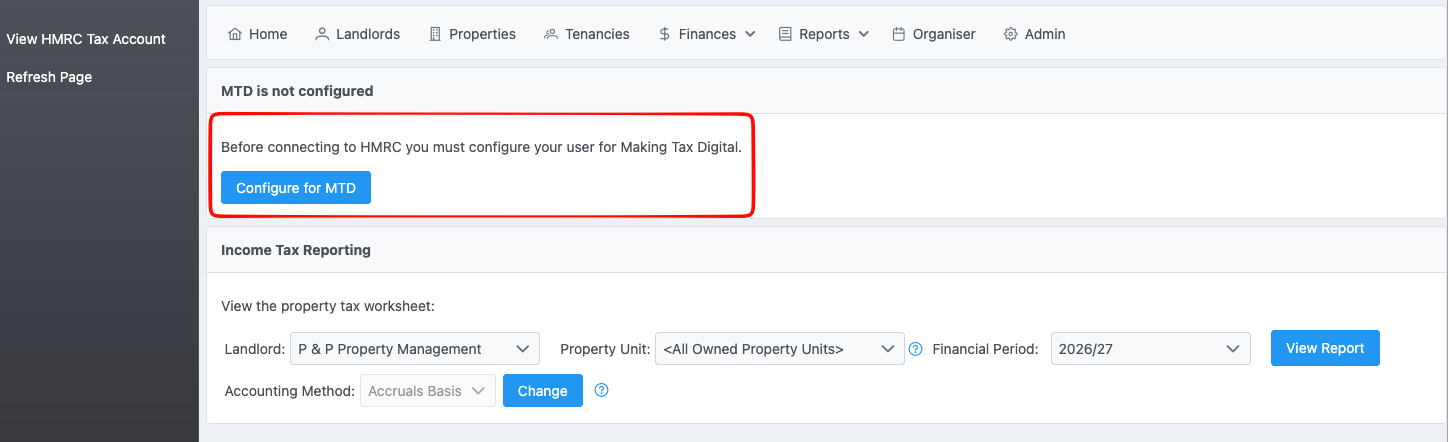
- Click on the Configure for MTD button.
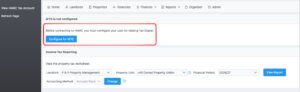
- Click on the Configure for MTD button.
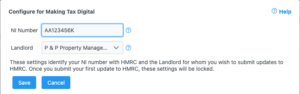
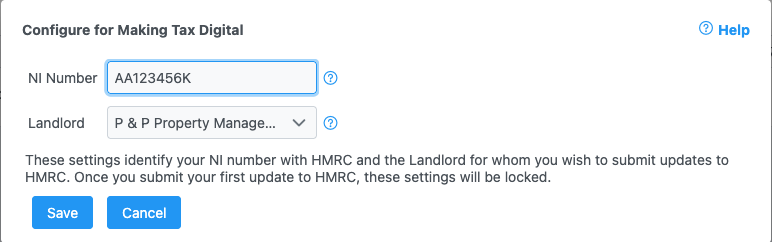
- This will show a dialog where the user must specify their NI (National Insurance) number and select their landlord record.
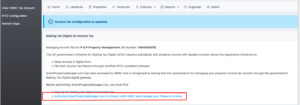
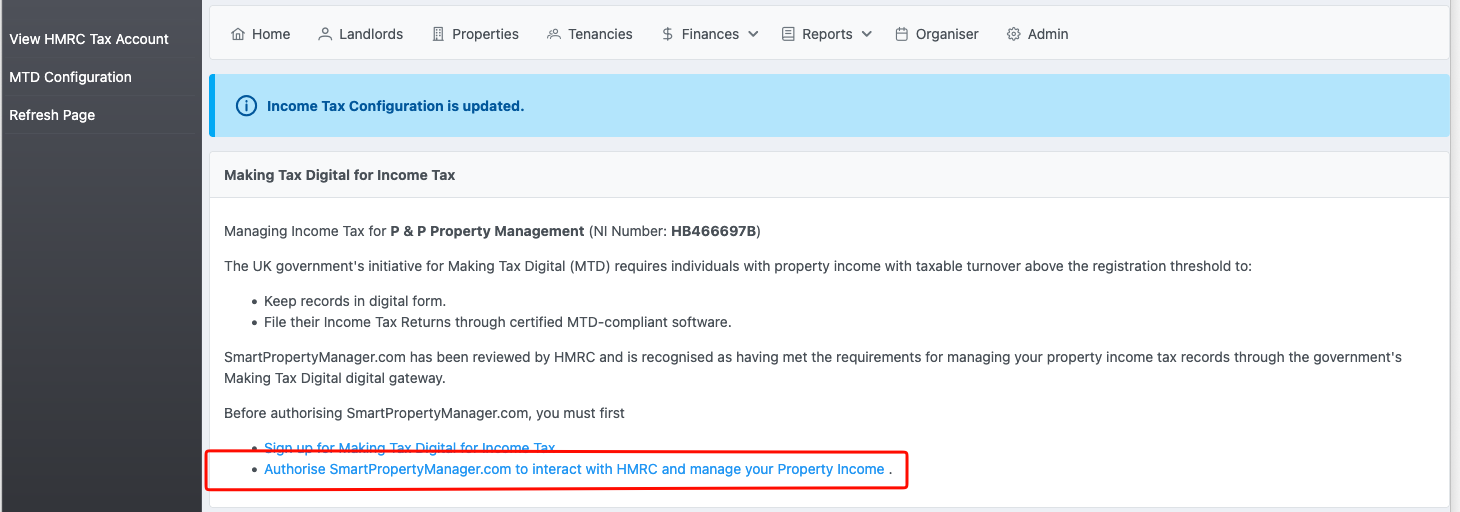
- Click on the link Authorize SmartPropertyManager.com to interact with HMRC and manage your Property Income. to connect the user’s SmartPropertyManager.com account to their HMRC account. The link will take the individual to HMRC where they need to log in and then give SmartPropertyManager.com permission to view and change their self assessment information.
- When HMRC asks you to log in, use the HMRC account for the individual owner currently logged in to SmartPropertyManager.com. The user profile NI number, selected Landlord record and HMRC authorisation should all relate to the same person.
- Once connected, the user will be returned to the UK Property Tax page which will now display information from HMRC:
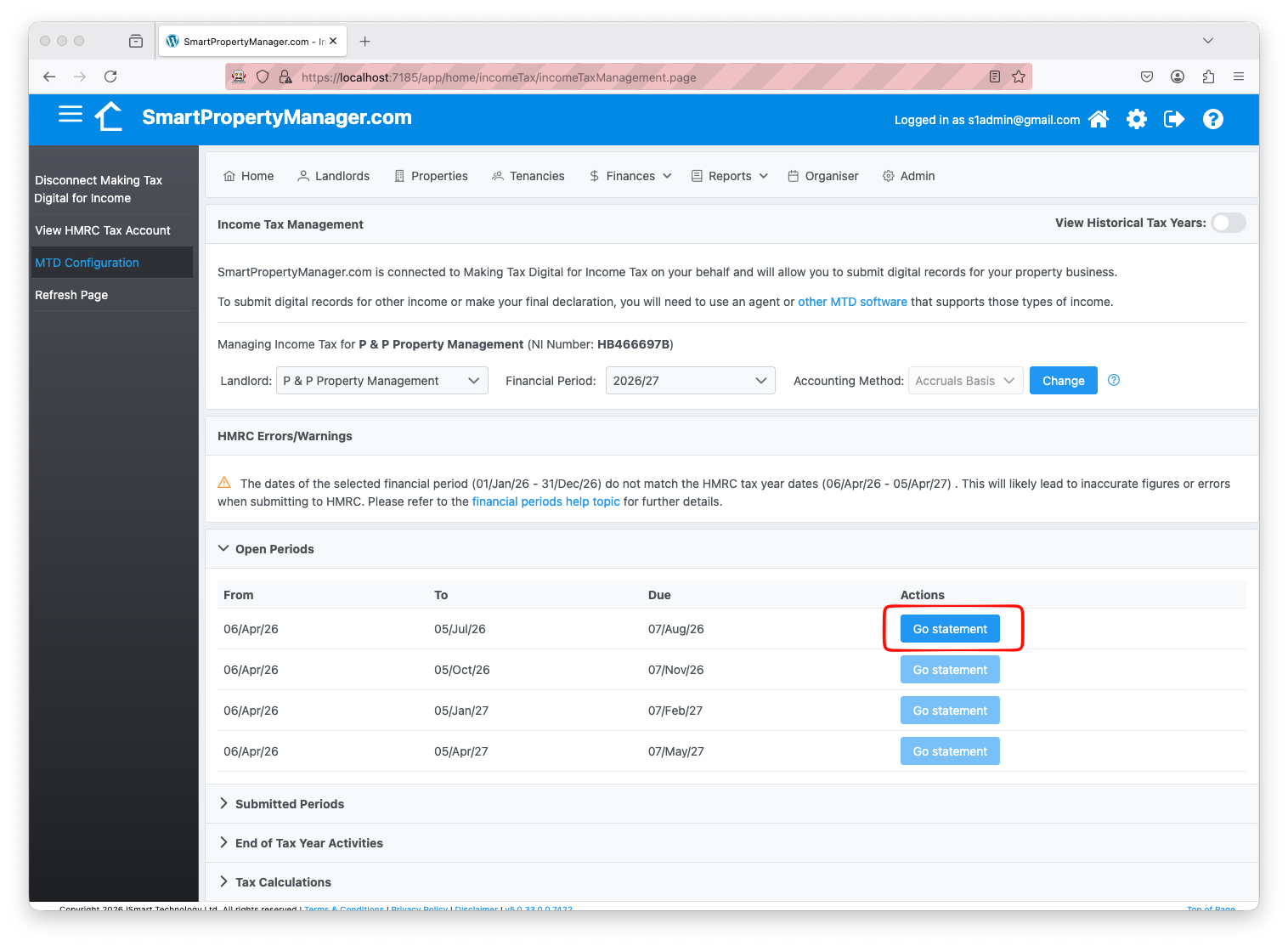
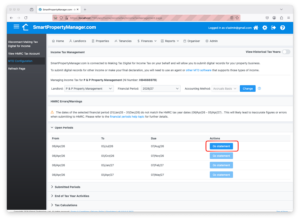
- Open Periods: The list of quarterly periods which have not yet been submitted.
- Submitted Periods: The list of quarterly periods that have been submitted.
Submitting your first quarterly update
For accounts with multiple individual owners, each owner must submit their own quarterly update separately. Submitting one owner’s update does not submit the figures for the other owners. Each owner needs to follow these steps:
- Log in as the individual owner who is making the submission.
- Go to the UK Property Tax page by clicking on Finances and then UK Property Tax in the main menu.
- For jointly owned properties, the selected Landlord should be the Landlord record for the individual owner currently logged in.
- Make sure the correct Landlord, financial period and accounting method are selected.
- Important: HMRC will only return information for 2025/26 or later. It will not return any information for financial periods before 2025.
- From the Open Periods table, find the next due period and click on the Go Statement button to navigate to the tax worksheet.
- Review the figures for accuracy.
- The tax worksheet is laid out in the same way as the regular SA105 form that is used for UK Property Tax self-assessments.
- It is important you fully understand how to complete the SA105 form. Please refer to the official HMRC self-assessment guides for information. You can find links in the help pages.
- Review the detail transaction tables for Income and Expenditure to ensure they are complete and accurate.
- The figures shown for jointly owned properties will be proportioned according to the ownership rules defined against the portfolio or property unit.
- Review the figures in the Tax Summary section to ensure they are accurate.
- The boxes which are not editable are calculated from the detail transaction tables.
- The boxes which are editable are your responsibility to enter.
- When ready, submit the figures.
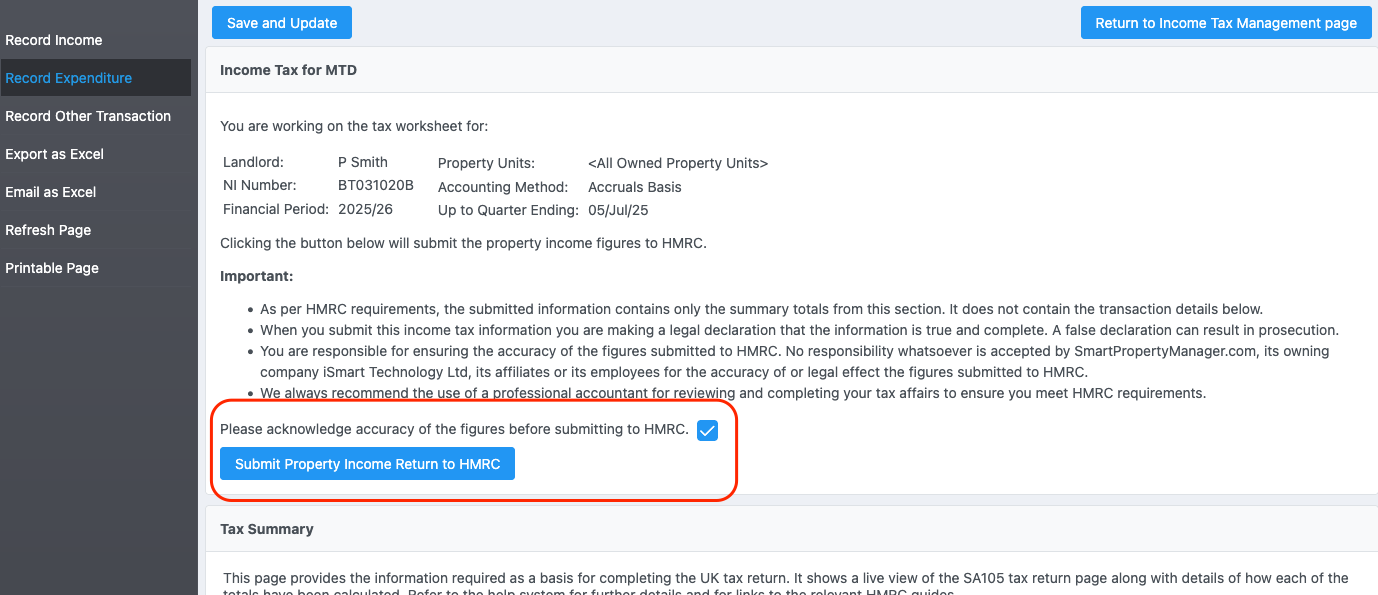
- You will be able to submit the figures for each quarter once you are after the end of the quarterly period end date. At this point, the tax worksheet will display the option to submit the figures as shown in the following screenshot.
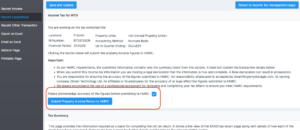
- Once a period has been submitted, it will no longer appear in the list of Open Periods and instead shows in the list of Submitted Periods.
- A snapshot of the data is automatically saved to your attachments. You can access them through the Organizer page.
- You will be able to submit the figures for each quarter once you are after the end of the quarterly period end date. At this point, the tax worksheet will display the option to submit the figures as shown in the following screenshot.